Job
enquiry:+91-9121642626
Job
enquiry:+91-9121642626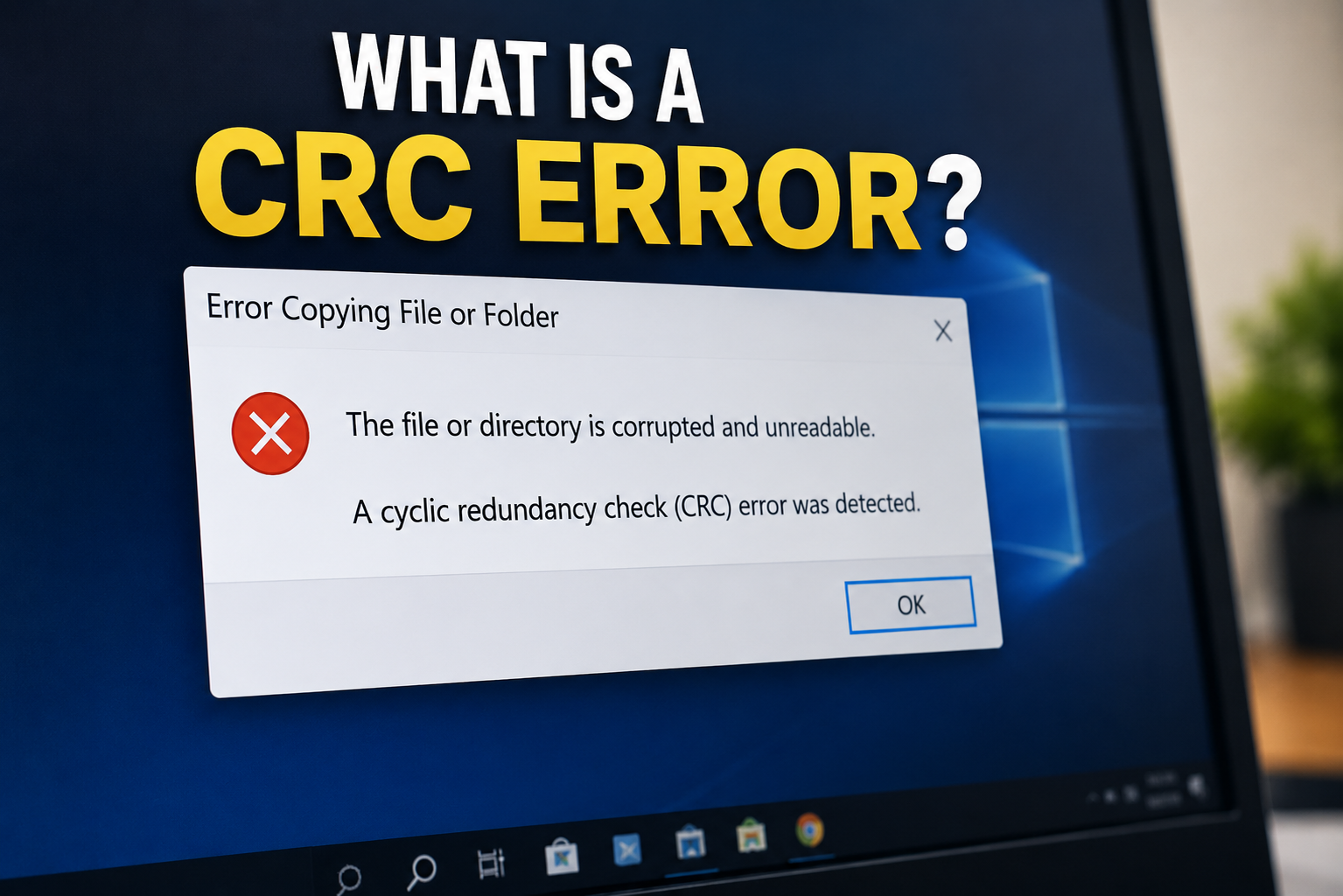
What Is a CRC Error? Causes, Solutions, and Prevention Tips
Have you ever tried copying a file, installing software, or accessing a storage device only to receive a message saying "Data Error (Cyclic Redundancy Check)"? This issue, commonly known as a CRC error, occurs when a system detects that data has been corrupted or altered during storage, transfer, or retrieval. In simple terms, the computer cannot verify the integrity of the data, making it difficult or impossible to access the affected files.
CRC (Cyclic Redundancy Check) is an error-detection method used by computers, storage devices, and networks to ensure that data remains accurate and unchanged. When the calculated CRC value does not match the original value, the system flags the data as potentially corrupted and displays a CRC error. These errors can occur due to damaged hard drives, faulty USB devices, bad sectors, corrupted files, interrupted transfers, or hardware-related issues.
Understanding what is a CRC error is important because it can help you protect valuable data and prevent further system problems. In this guide, you'll learn how CRC errors work, the most common causes behind them, practical methods to fix them, and the best practices to avoid data corruption in the future.
What Is a CRC Error?
A CRC error, or Cyclic Redundancy Check error, occurs when a computer system detects a mismatch between the original data and the data being read, copied, or transferred. CRC is an error-detection technique used to verify the integrity of data.
When data is written to a storage device or transmitted across a network, a CRC value is calculated and attached to the data. When the data is later accessed or transferred, the system recalculates the CRC value and compares it with the original one. If the values do not match, the system assumes the data has been corrupted and generates a CRC error.
In simple terms, a CRC error means the computer cannot verify that the data is accurate and unchanged.
CRC technology is widely used in:
- Hard drives and SSDs
- USB flash drives
- CDs and DVDs
- Network communications
- Database systems
- File compression tools
- Backup and recovery systems
The primary goal of CRC is to ensure that information remains intact during storage and transmission.
How Does a Cyclic Redundancy Check Work?
To understand CRC errors better, it's important to know how the cyclic redundancy check process works.
The CRC process follows these steps:
Step 1: Data Generation
When data is created, saved, or transmitted, the system generates a mathematical checksum based on the contents of the file.
Step 2: CRC Value Creation
A CRC algorithm calculates a unique value from the data. This value acts like a digital fingerprint.
Step 3: Data Storage or Transfer
The data and its CRC value are stored together or transmitted across a communication channel.
Step 4: Verification
When the data is accessed again, the system recalculates the CRC value using the current version of the file.
Step 5: Comparison
The newly generated CRC value is compared to the original CRC value.
Step 6: Error Detection
If both values match, the data is considered intact. If they differ, the system reports a CRC error because the data has changed unexpectedly.
This process helps identify accidental changes caused by hardware failures, transmission issues, or file corruption.
Why Is CRC Important?
Businesses that rely on custom software development often implement advanced validation and error-detection mechanisms to maintain data integrity across applications.
CRC helps organizations and users:
- Detect data corruption quickly
- Improve data reliability
- Maintain file integrity
- Prevent the use of damaged files
- Improve storage system accuracy
- Enhance communication reliability
Without CRC checks, corrupted files could be processed as valid data, leading to application failures, inaccurate records, and system instability.
Common Causes of CRC Errors
CRC errors can occur for many reasons. Identifying the underlying cause is the first step toward resolving the problem.
Corrupted Files
File corruption is one of the most common causes of CRC errors.
Corruption can occur when:
- A system shuts down unexpectedly
- A file download is interrupted
- Software crashes during saving
- Storage devices malfunction
When the file's contents change unexpectedly, the CRC check fails.
Bad Sectors on Hard Drives
Hard drives contain physical storage sectors where data is stored.
Over time, some sectors may become damaged due to:
- Wear and tear
- Mechanical failures
- Power surges
- Manufacturing defects
When data is stored in damaged sectors, CRC errors may appear during access or transfer.
SSD Storage Issues
Although SSDs have no moving parts, they are not immune to CRC errors.
Potential SSD-related causes include:
- Failing memory cells
- Firmware bugs
- Controller failures
- Data degradation
When SSD components begin to fail, CRC validation may detect inconsistencies.
Faulty USB Drives
USB flash drives are frequently connected and disconnected, making them vulnerable to data corruption.
Common issues include:
- Improper ejection
- Physical damage
- Aging memory chips
- Power interruptions
These factors can trigger CRC errors when accessing files.
Damaged Data Cables
A faulty SATA or USB cable can corrupt data during transmission.
Symptoms include:
- Intermittent drive detection
- Slow transfers
- Frequent CRC errors
- Unexpected disconnections
Replacing damaged cables often resolves these issues.
Interrupted File Transfers
When copying large files, interruptions can corrupt data.
Causes include:
- Power outages
- System crashes
- Network failures
- Accidental device removal
Incomplete transfers may generate CRC errors when files are opened.
Malware and Viruses
Malicious software can modify, encrypt, or damage files.
As a result:
- File structures change
- Data becomes inaccessible
- CRC checks fail
Running regular antivirus scans helps reduce this risk.
Network Transmission Problems
In network environments, CRC errors may occur when data packets become corrupted during transmission.
Possible reasons include:
- Network congestion
- Hardware faults
- Signal interference
- Router issues
Network CRC errors can affect communication reliability and application performance.
Common Symptoms of a CRC Error
CRC errors often present specific warning signs.
File Transfer Failures
You may receive an error message when copying files between drives.
Inaccessible Files
Documents, videos, or archives may refuse to open.
Slow System Performance
Storage devices experiencing CRC issues may become unusually slow.
Backup Failures
Backup software may fail to complete operations due to corrupted files.
Installation Errors
Software installation packages may report CRC failures during extraction.
Frequent Disk Errors
The operating system may repeatedly warn about drive issues. Recognizing these symptoms early can prevent further data loss.
How to Fix a CRC Error
The solution depends on the cause of the problem. Below are several methods that can help resolve CRC errors.
Method 1: Restart Your Computer
Sometimes CRC errors occur due to temporary software glitches.
Steps:
- Save your work.
- Restart the system.
- Retry the file operation.
A simple reboot may resolve temporary memory-related issues.
Method 2: Run CHKDSK
CHKDSK scans Windows file systems for logical and physical disk errors that may contribute to CRC failures.
Steps:
Open Command Prompt as Administrator.
Enter: chkdsk C: /f /r
Press Enter.
Restart the system if prompted.
CHKDSK can locate bad sectors and recover readable information.
Method 3: Use System File Checker (SFC)
Damaged system files may contribute to CRC-related problems.
Run: sfc /scannow
This tool scans and repairs corrupted Windows files.
Method 4: Update Device Drivers
Outdated storage drivers may cause communication problems.
Update:
- Storage controller drivers
- SSD firmware
- USB drivers
- Motherboard chipset drivers
Driver updates can improve stability and reduce CRC errors.
Method 5: Replace Faulty Cables
If CRC errors occur frequently on internal or external drives:
- Inspect SATA cables
- Replace damaged USB cables
- Secure loose connections
A simple cable replacement often resolves transmission issues.
Method 6: Scan for Malware
Perform a complete system scan using reputable security software.
This helps identify:
- Viruses
- Trojans
- Ransomware
- File-modifying malware
Removing malware can restore normal file operations.
Method 7: Recover Corrupted Files
If important files are affected:
- Restore from backups
- Use recovery software
- Contact professional recovery services
Avoid repeatedly accessing damaged files, as this may worsen corruption.
CRC Errors in Hard Drives, SSDs, and USB Devices
CRC Errors in Hard Drives
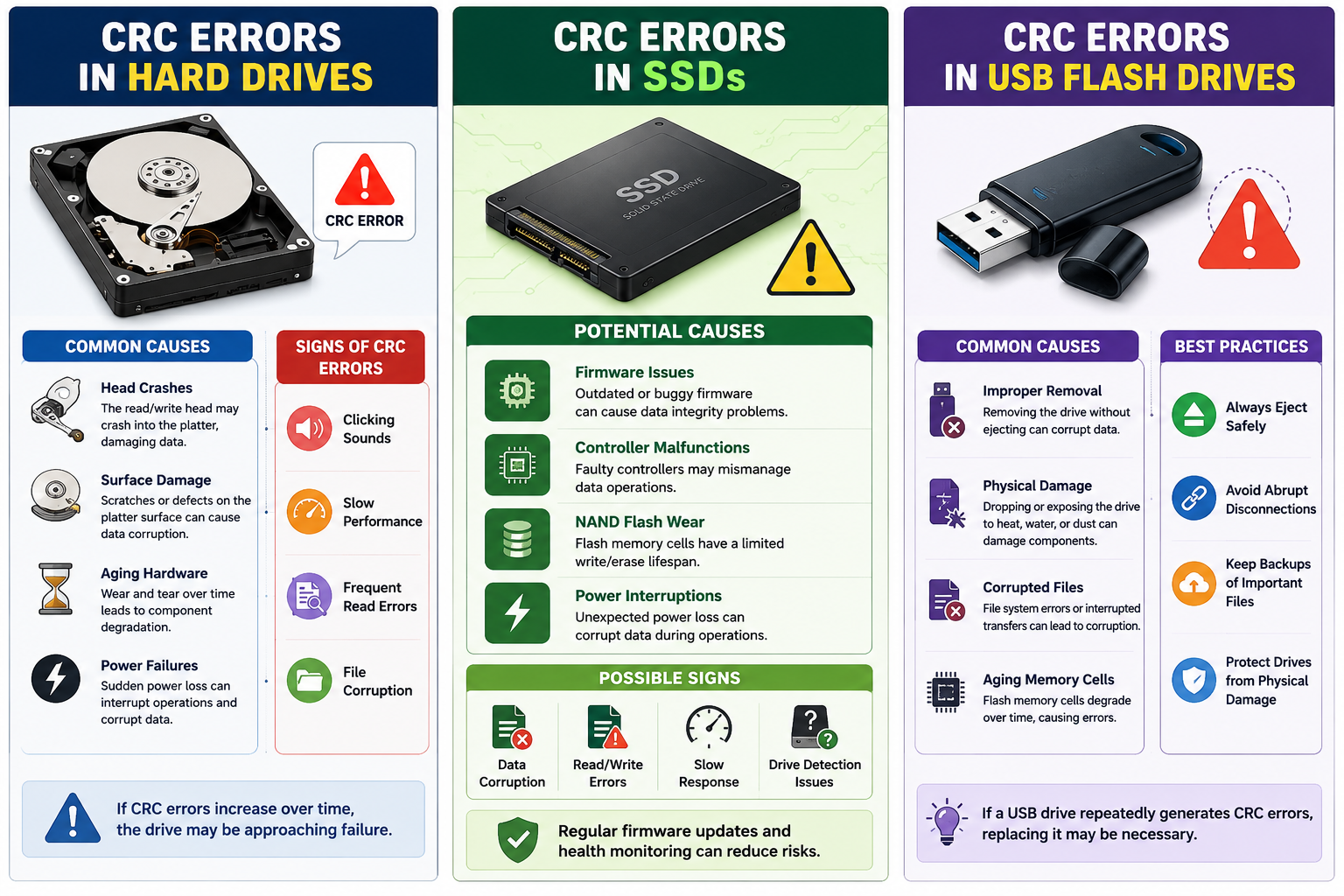
Traditional hard drives are especially susceptible to CRC errors because they contain moving mechanical components.
Common causes include:
- Head crashes
- Surface damage
- Aging hardware
- Power failures
Signs of hard drive-related CRC errors include:
- Clicking sounds
- Slow performance
- Frequent read errors
- File corruption
If CRC errors increase over time, the drive may be approaching failure.
CRC Errors in SSDs
Solid-state drives generally provide better reliability than traditional hard drives, but CRC errors can still occur.
Potential causes include:
- Firmware issues
- Controller malfunctions
- NAND flash wear
- Power interruptions
Regular firmware updates and health monitoring can reduce risks.
CRC Errors in USB Flash Drives
USB devices frequently encounter CRC errors due to improper removal.
Best practices include:
- Always eject safely
- Avoid abrupt disconnections
- Keep backups of important files
- Protect drives from physical damage
If a USB drive repeatedly generates CRC errors, replacing it may be necessary.
CRC Errors During Network Communication
CRC plays a major role in networking.
When data travels across networks:
- Packets are assigned CRC values.
- Receiving systems validate integrity.
- Corrupted packets are rejected.
Network CRC errors may indicate:
- Damaged network cables
- Switch problems
- Router faults
- Signal interference
This is particularly important for mobile app development, where uninterrupted data transmission directly impacts user experience and application performance.rors.
How to Recover Data After a CRC Error
Data recovery may be necessary when CRC errors prevent access to important files.
Use Backup Copies
The safest recovery method is restoring data from backups.
Use Recovery Software
Many tools can recover data from damaged drives.
Features often include:
- Deep scanning
- Partition recovery
- File reconstruction
- Corruption detection
Professional Recovery Services
For critical business data, professional services may be the safest option.
They use specialized hardware and recovery techniques to extract information from damaged devices.
How to Prevent CRC Errors
Regular backups and proper storage maintenance play a crucial role in maintaining data integrity and reducing the risk of CRC errors.Prevention is always better than recovery.
Maintain Regular Backups
Create automated backups of important files.
Monitor Drive Health
Use storage monitoring tools to detect failures early.
Use Quality Hardware
Choose reliable drives, cables, and networking equipment.
Install Antivirus Software
Prevent malware-related file corruption.
Safely Remove External Devices
Always use the "Eject" option before disconnecting drives.
Keep Systems Updated
Install firmware and driver updates regularly.
Protect Against Power Failures
Use uninterruptible power supplies (UPS) to prevent sudden shutdowns.
CRC Error vs Other Common Disk Errors
| Error Type |
Description |
| CRC Error |
Data verification mismatch |
| Bad Sector Error |
Physical disk damage |
| File Corruption |
Damaged file structure |
| Read Error |
Failure to access data |
| Write Error |
Failure to save data |
| SMART Warning |
Hardware failure prediction |
Conclusion
Understanding what is a CRC error is essential for protecting your data and maintaining system reliability. A CRC error occurs when the system detects a mismatch between stored or transmitted data and its expected integrity value. These errors commonly result from corrupted files, damaged storage sectors, faulty cables, interrupted transfers, malware infections, or hardware failures.
Fortunately, most CRC errors can be diagnosed and resolved using tools such as CHKDSK, SFC scans, driver updates, and storage health monitoring. More importantly, implementing preventive measures such as regular backups, safe device handling, and proactive system maintenance can significantly reduce the risk of future data corruption.
As businesses increasingly rely on digital systems and large-scale data management, maintaining data integrity becomes critical. Organizations that invest in reliable software solutions, secure infrastructure, and proactive monitoring are better positioned to minimize CRC-related disruptions and ensure consistent operational performance.
Frequently Asked Questions
1. Why do CRC errors occur on external hard drives?
External hard drives may experience CRC errors due to bad sectors, damaged USB cables, improper removal, power interruptions, or physical wear over time.
2. Can CRC errors be fixed?
Yes. Common solutions include running CHKDSK, updating drivers, replacing cables, scanning for malware, and recovering damaged files.
3. Does a CRC error mean my hard drive is failing?
Not always. However, recurring CRC errors can be an early warning sign of drive failure.
4. Can SSDs experience CRC errors?
Yes. Although SSDs are more reliable than traditional hard drives, they can still experience firmware issues, memory cell degradation, and controller problems.
5. How can I prevent CRC errors?
Regular backups, hardware maintenance, antivirus protection, and proper device handling can significantly reduce CRC-related issues.
6. Can a CRC error cause data loss?
Yes. A CRC error itself does not delete data, but it often indicates file corruption or storage issues that may lead to data loss if left unresolved. Backing up important files as soon as possible is recommended.
7. What causes a CRC error when copying files?
A CRC error during file transfer is usually caused by corrupted files, bad sectors on a storage device, faulty cables, or interruptions during the copying process.
8. Can a virus cause a CRC error?
Yes. Malware and viruses can modify or corrupt files, causing CRC checks to fail and resulting in CRC error messages.
9. How do I check if my hard drive has CRC errors?
You can use built-in tools such as CHKDSK on Windows or disk diagnostic software to scan your drive for bad sectors, file system errors, and other issues that may trigger CRC errors.
10. Can a damaged USB drive cause CRC errors?
Absolutely. Physical damage, improper ejection, worn-out memory cells, or file corruption on a USB drive can result in CRC errors when accessing or transferring files.
Referral Links
What Is a CRC Error and How Does It Work?- https://youtu.be/iqWnRQ6TmlA?si=Fyt1gDOBuoTUSZE3
Video Tutorial: How to Fix a CRC Error - https://youtu.be/WeghFb8SArs?si=FUvp53OW1VKJ59x6








 Whatsapp
 Email
Email